KEXBI widget guide: how to use Up Next on iOS
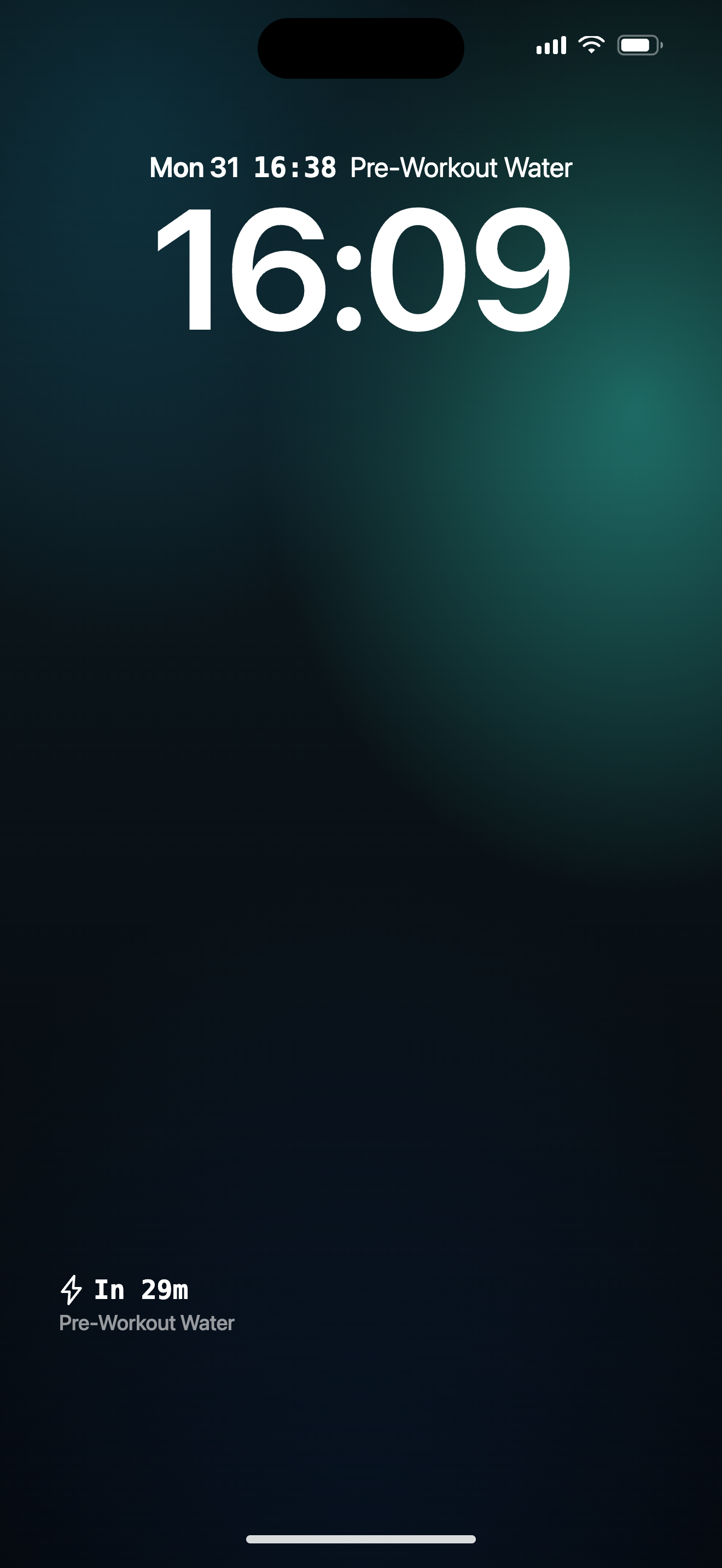
Put your daily nutrition timeline on your lock screen to track your next meal, workout, or hydration window at a single glance.
Put your daily nutrition timeline on your lock screen to track your next meal, workout, or hydration window at a single glance.
The point of the KEXBI widget is one glance. Not a dashboard, not an overview, not a stack of numbers you have to parse. One line: what happens next, when, and how much. The rest of the app is there when you need it. The widget is there so you rarely do.
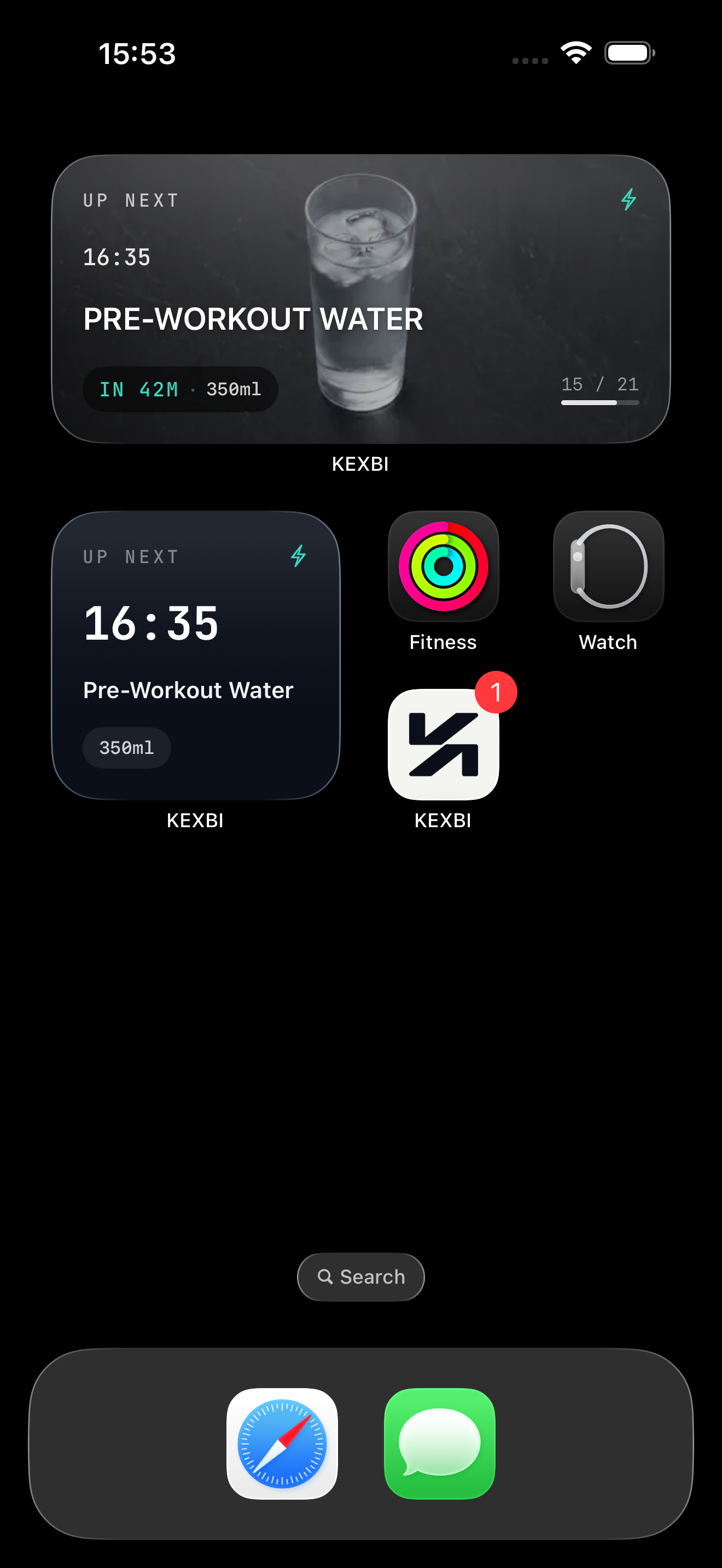
Every widget family draws from the same source: the next item on today's fuel plan. Under the hood the item has a scheduled time, a name (meal, workout, hydration cue), and an amount where relevant. What each family renders from that (the countdown, the position in the day, the meal photo, the amount pill) depends on the size. Section 02 lays that out per family.
When the moment arrives, the item holds as Now instead of switching to countdown zero. It holds for half the gap to whatever comes next, capped at fifteen minutes. So the pre-workout window that leads straight into training hands over quickly. A meal with nothing scheduled for two hours after it keeps its moment for the full fifteen. That behaviour is deliberate. Nothing about the widget ever tells you that you are late.
| State | What it means | What to do |
|---|---|---|
| Up Next | Normal running mode. The next item is queued. | Nothing. This is the state you want. |
| Now | You are inside the dwell window (up to 15 minutes past the item's scheduled time), so the widget is still pointing at it. | Log the item when you get to it, or wait: the widget will move on to the next one on its own. |
| All fuelled | Today's plan is finished. The last item's window has passed. On screen: "All fuelled. Nothing left today." | Nothing to nudge you about. The widget will pick up tomorrow's plan when your briefing runs. |
| No plan yet | Today's fuel plan has not been generated, or has zero items. On screen: "No plan yet today. Open KEXBI to build it." | Open KEXBI and run today's briefing. The widget will populate on its own once the app writes the payload. |
| Refresh needed | The data behind the widget is more than 18 hours old, or was written on a different local day. On screen: "Open KEXBI to refresh your plan." | Open KEXBI. The briefing refresh writes a new payload and the widget catches up on the next timeline entry. |